
Lunch Flow
Tally Up supports Lunch Flow in Bring Your Own API Key mode. You manage your bank connections inside Lunch Flow’s own dashboard, and Tally Up reads your balances and transactions from there using an API key you create.
This means:
- Your banking credentials stay with Lunch Flow — Tally Up never sees them.
- Tally Up calls the Lunch Flow API directly from your device using the key.
- You can revoke Tally Up’s access at any time by deleting or rotating the API key in Lunch Flow.
What you will need
Section titled “What you will need”- A Lunch Flow account with at least one bank already connected
- A Lunch Flow API key (created in the Lunch Flow dashboard — takes about a minute)
Step 1 — Connect your banks in Lunch Flow
Section titled “Step 1 — Connect your banks in Lunch Flow”If you have not already done so, log in to Lunch Flow and connect the bank accounts you want to import into Tally Up. Lunch Flow handles the open banking authorisation with each bank.
You only need to do this once per bank. Tally Up will be able to see any account that is connected in Lunch Flow.
Step 2 — Create a destination
Section titled “Step 2 — Create a destination”A destination is a set of read-only credentials that gives Tally Up access to your Lunch Flow data. Each destination has its own API key and can be revoked independently.
- In the Lunch Flow dashboard, navigate to Destinations.
- Click Add Destination and choose the type REST API.
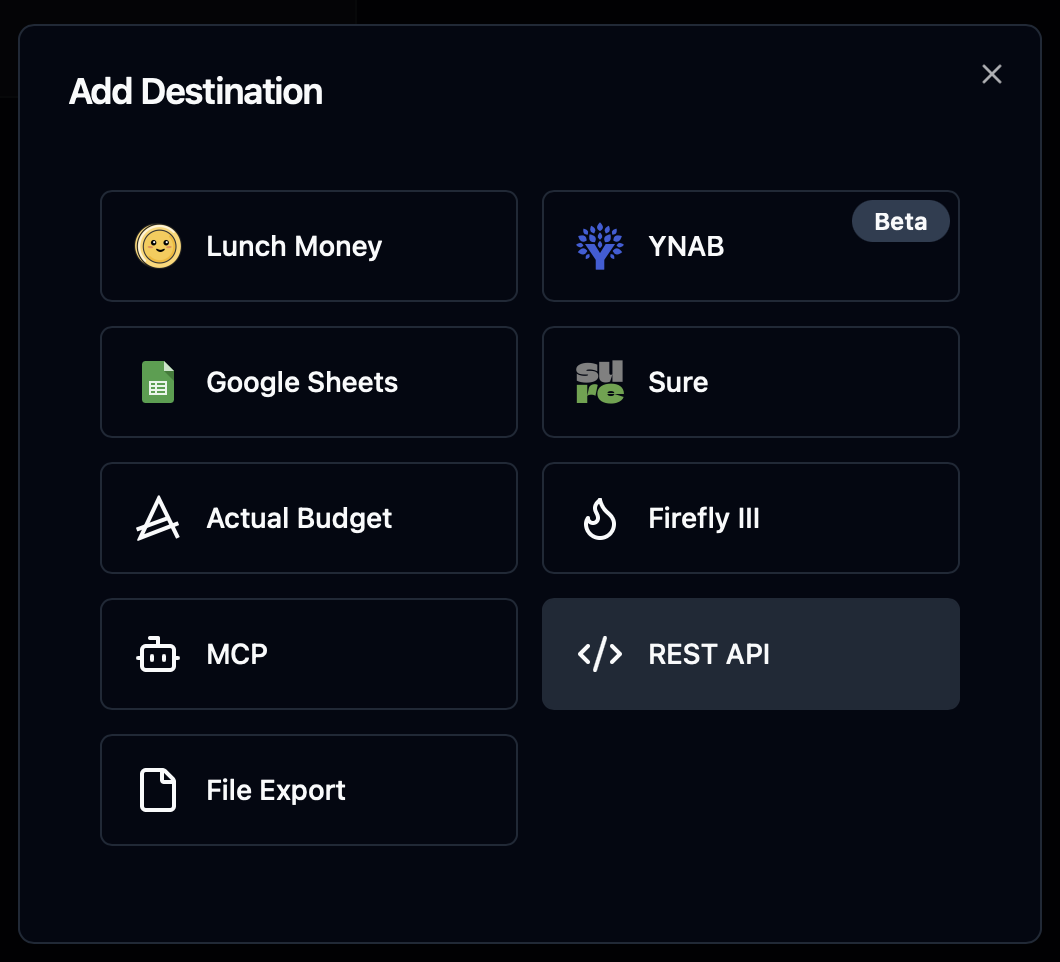
- Give the destination a name — for example, “Tally Up”.
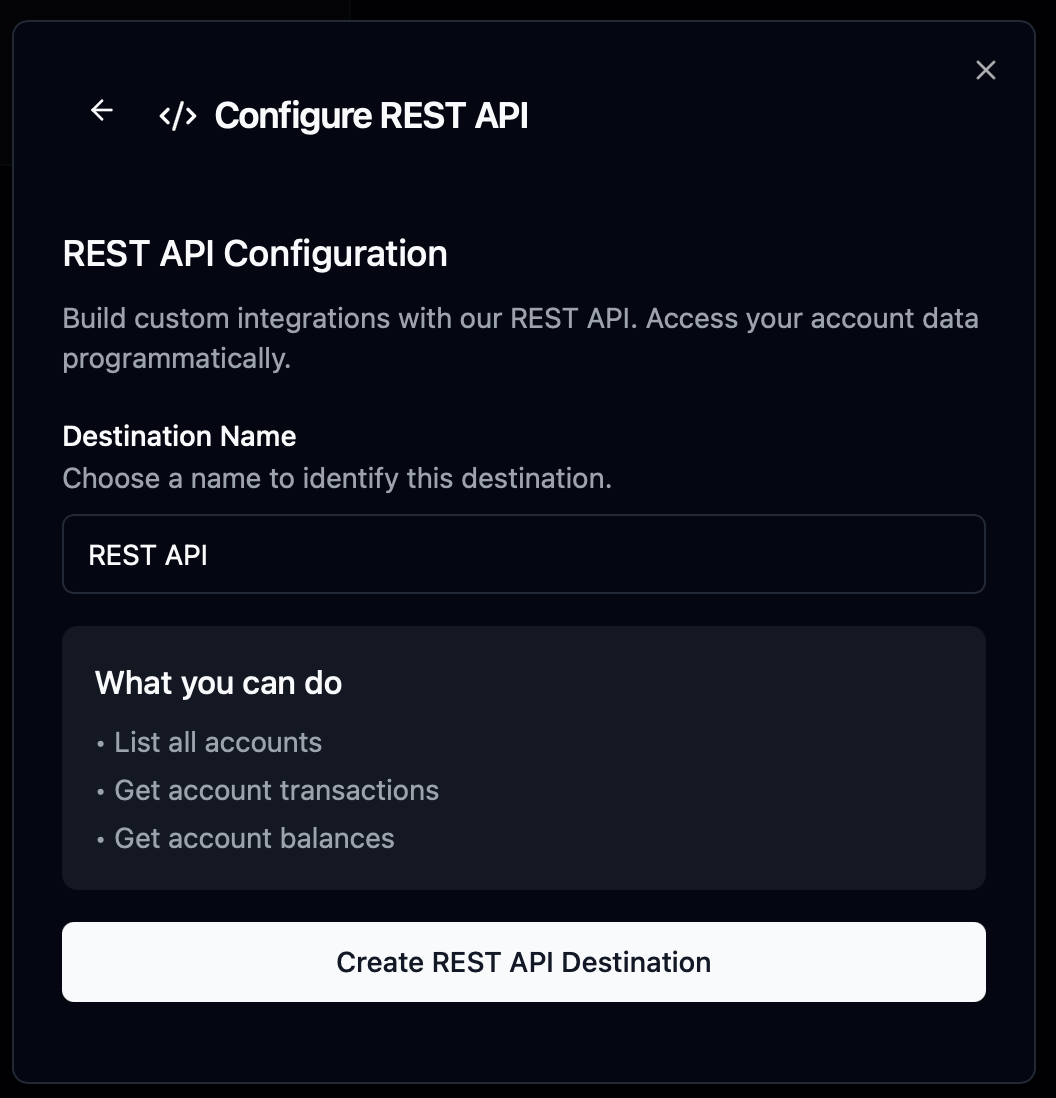
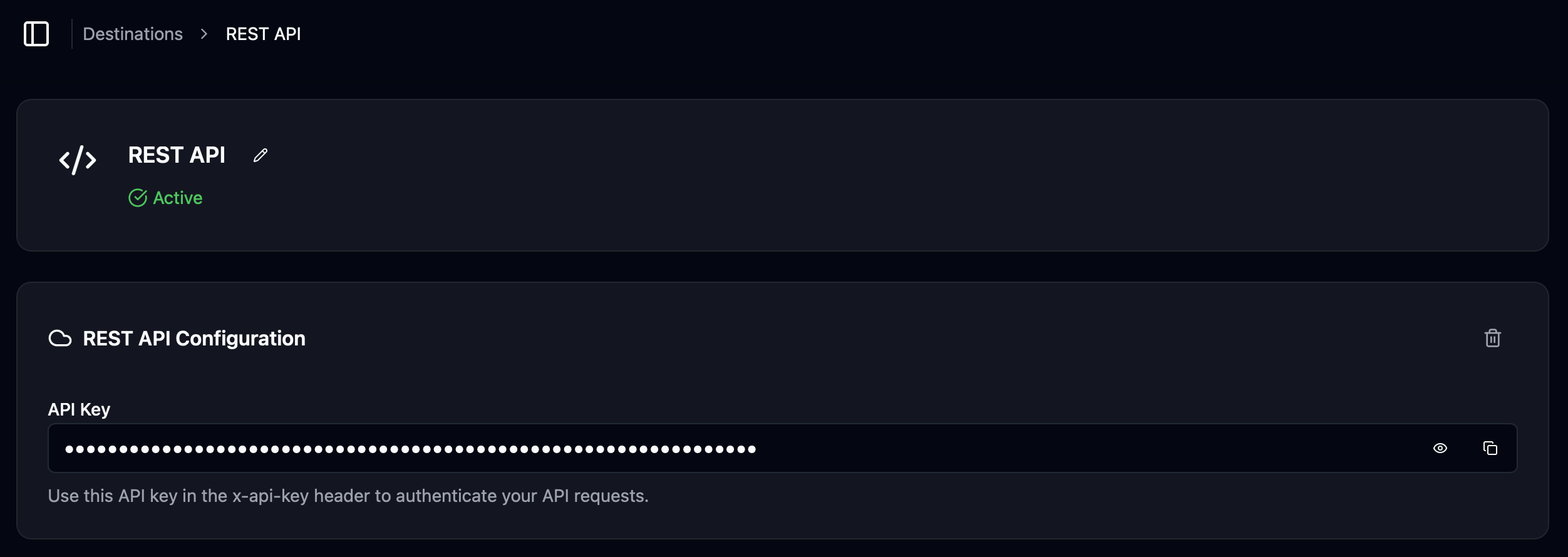
- Confirm to create the destination. Lunch Flow generates an API key.
- Copy the API key shown on the final screen.
Step 3 — Add the connection in Tally Up
Section titled “Step 3 — Add the connection in Tally Up”- In Tally Up, open Settings → Bank Connections and tap Add Connection.
- Select Lunch Flow as the provider.
- Paste your API key into the field.
- Tap Test Connection. Tally Up fetches your account list from Lunch Flow to confirm the key works.
- If the test succeeds, tap Save Connection.
The API key is stored in your device’s secure Keychain. It is never uploaded to any server.
Step 4 — Link accounts to assets
Section titled “Step 4 — Link accounts to assets”Once the connection is saved, link each bank account to a Tally Up asset:
- Open the asset you want to link (or create a new one).
- In the asset editor, find the Banking section.
- Select your saved Lunch Flow connection.
- Choose the bank account to link to this asset — Tally Up shows the accounts available in your Lunch Flow connection.
- Save the asset.
If you have multiple bank accounts in Lunch Flow, set up one Tally Up asset per account.
What gets imported
Section titled “What gets imported”Tally Up fetches transactions and the current balance for each linked account. Transactions include:
- Inflows (deposits, incoming transfers)
- Outflows (payments, outgoing transfers, direct debits)
Transaction descriptions come from Lunch Flow’s merchant data, so they typically show the merchant or payee name rather than a raw bank reference.
Recommended connection settings
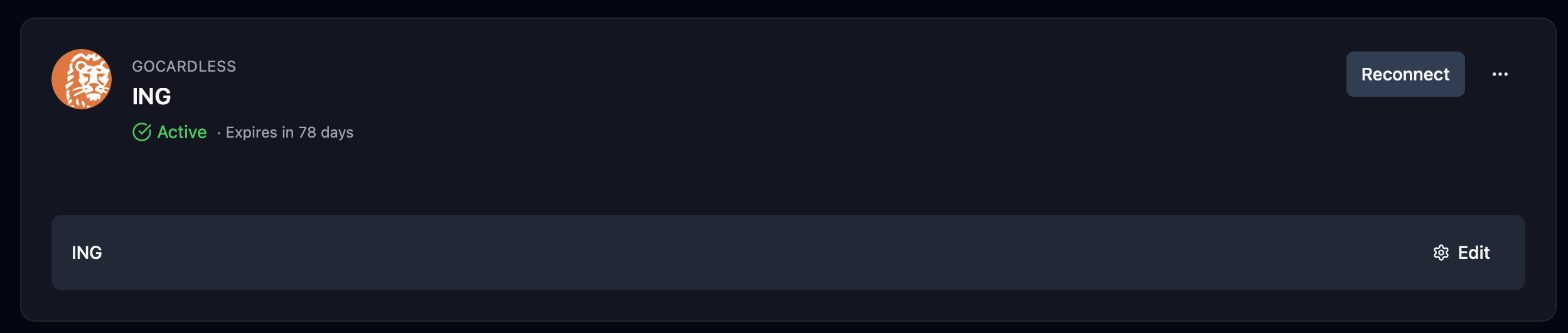
Section titled “Recommended connection settings”When you set up a connection in Lunch Flow, two settings affect how transactions arrive in Tally Up. We recommend configuring them as follows to keep your balances accurate.
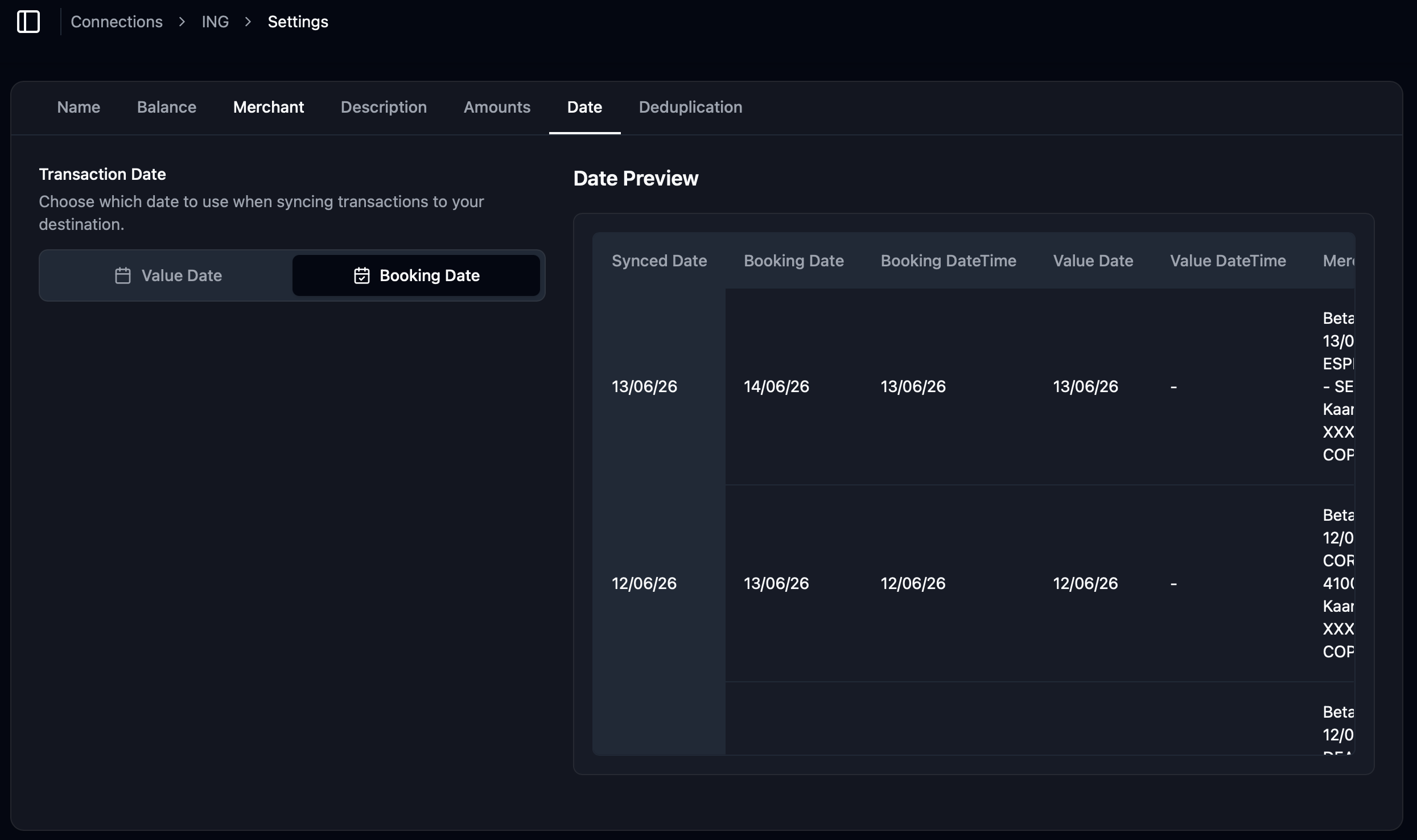
Date field
Section titled “Date field”Set the date field to Booking Date (the date the transaction was definitively posted to your account), rather than value date or transaction date. This matches what you see on your bank statement and avoids confusion when transactions settle on a different date from when they were initiated.
Balance field
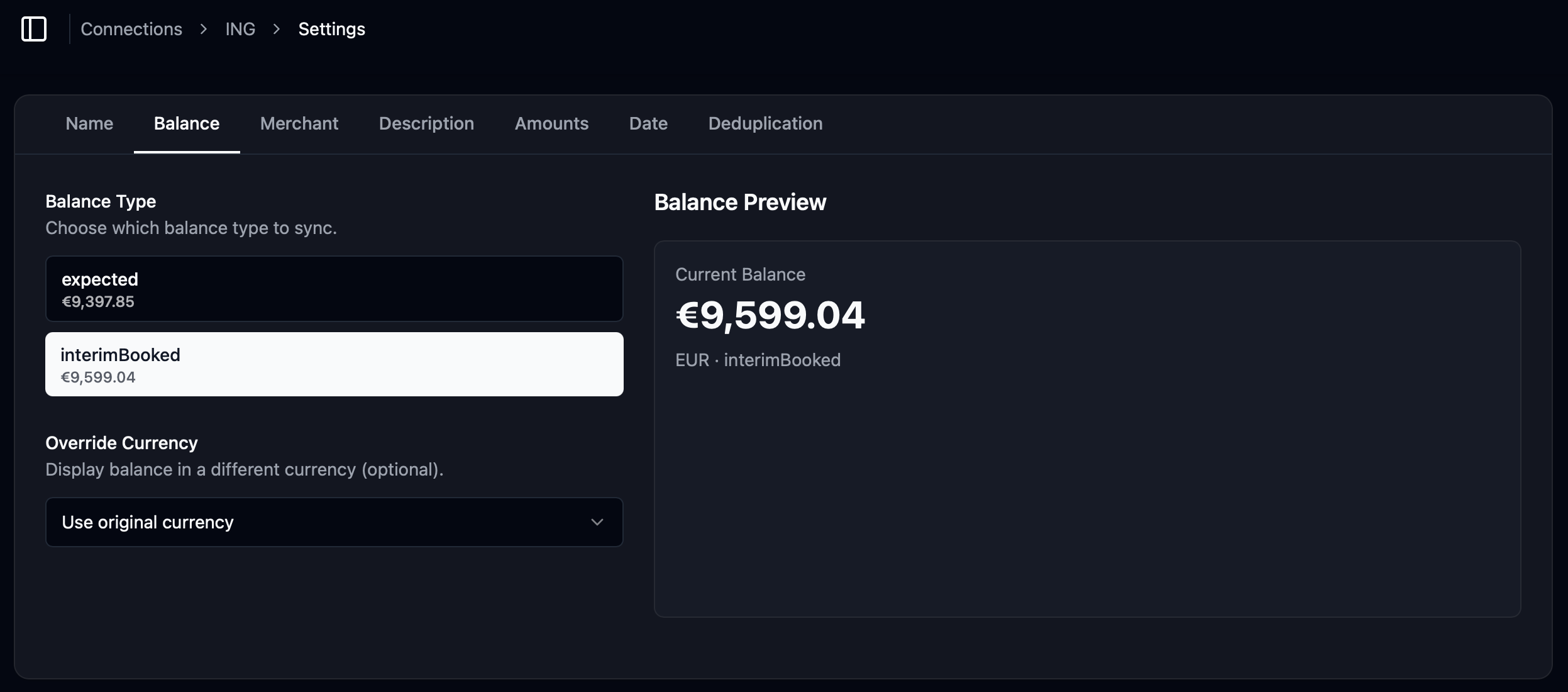
Section titled “Balance field”Set the balance field to Interim Booked (the running balance of settled transactions only), if this option is available for your bank. This excludes bank-side pending amounts from the reported balance and keeps Tally Up’s balance figures consistent with your bank statement. Tally Up does not create its own pending-balance adjustment if the bank reports pending items in the balance.
Pending transactions
Section titled “Pending transactions”Tally Up only fetches settled transactions from Lunch Flow — pending transactions are never imported. This keeps your balance figures consistent with your bank statement and avoids reconciliation issues caused by transactions that change amount or disappear before they settle.
Revoking access
Section titled “Revoking access”To stop Tally Up from syncing, you can:
- Revoke in Tally Up — open Settings → Bank Connections, tap the Lunch Flow connection, and tap Revoke Connection. This removes the key from this device. Syncing stops immediately.
- Revoke in Lunch Flow — delete the API destination in the Lunch Flow dashboard. Any device using that key loses access immediately, regardless of whether you have updated Tally Up.
Revoking does not delete any transactions already imported into Tally Up.
Troubleshooting
Section titled “Troubleshooting”| Problem | Resolution |
|---|---|
| Invalid API key | The key may have been revoked or rotated in Lunch Flow. Create a new API destination and update the key in Tally Up. |
| No linked accounts | Lunch Flow has no connected banks. Log in to Lunch Flow and connect at least one bank account. |
| Rate limited | Lunch Flow is temporarily rate limiting requests. Wait a few minutes and try again. |
| Credentials required on this device | The API key is stored per device. Open Settings → Bank Connections and re-enter your key on this device. |
| Missing accounts when linking to an asset | Check the Account Access tab on your API destination in the Lunch Flow dashboard. Each account has a toggle that controls whether it is exposed through that destination — if it is off, the account will not appear in Tally Up. |
Using on a second device
Section titled “Using on a second device”The saved connection record syncs to all your devices via iCloud, but the API key is stored in the Keychain on each device separately.
On the second device:
- Open Settings → Bank Connections.
- Tap the Lunch Flow connection (shown as Credentials required on this device).
- Paste your API key and tap Save Connection.
It is recommended to enable background sync on your main device only. On secondary devices, leave Enable Background Refresh off in Settings → Bank Connections.