
Interactive Brokers
Tally Up connects to Interactive Brokers using the Flex Web Service — IBKR’s official mechanism for programmatic access to your activity statements. Setup involves two things in the IBKR website: a Flex Query (a report template) and a Flex Web Service token. Once configured, Tally Up imports trades, dividends, interest, fees, withholding tax, FX transactions, and cash movements automatically.
What you will need
Section titled “What you will need”- An Interactive Brokers account
- Access to IBKR Client Portal (the IBKR web interface)
- Two pieces of information from IBKR: a Flex Token and a Query ID
Step 1 — Create a Flex Query
Section titled “Step 1 — Create a Flex Query”A Flex Query is a saved report template that tells IBKR which data to include when Tally Up requests your activity statement.
- Log in to Interactive Brokers Client Portal and click Log In → Client Portal.
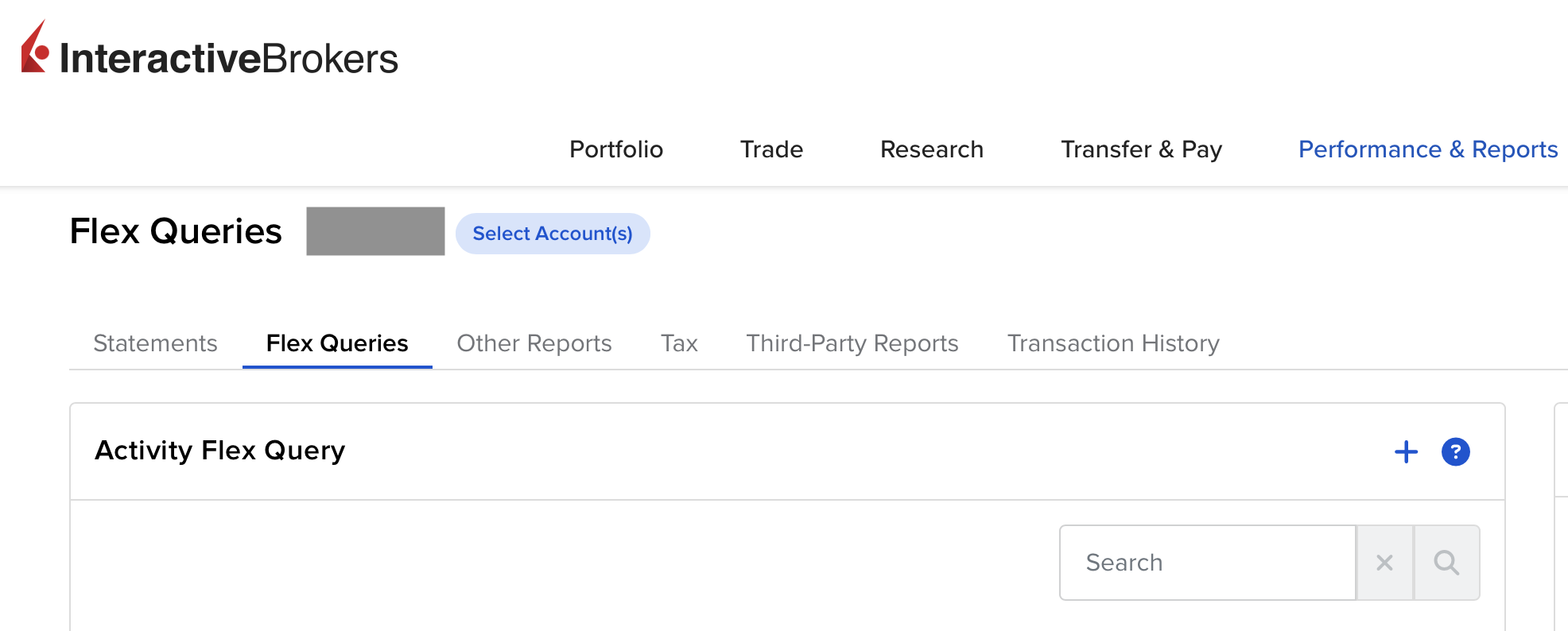
- Open the menu (☰) and navigate to Performance & Reports → Flex Queries.
- Click Create New Query.
- Set the query type to Activity Statement and the output format to XML.
Enable these sections
Section titled “Enable these sections”In the query editor, enable all of the following sections:
| Section | What it imports |
|---|---|
| Trades | Buy and sell transactions |
| Cash Transactions | Deposits, withdrawals, and cash adjustments |
| Dividends | Dividend payments |
| Withholding Tax | Tax withheld on dividends and interest |
| Interest | Interest earned |
| Fees / Commissions | Brokerage fees and commissions |
| FX Transactions | Foreign currency conversions |
| Corporate Actions | Stock splits, mergers, and other corporate events |
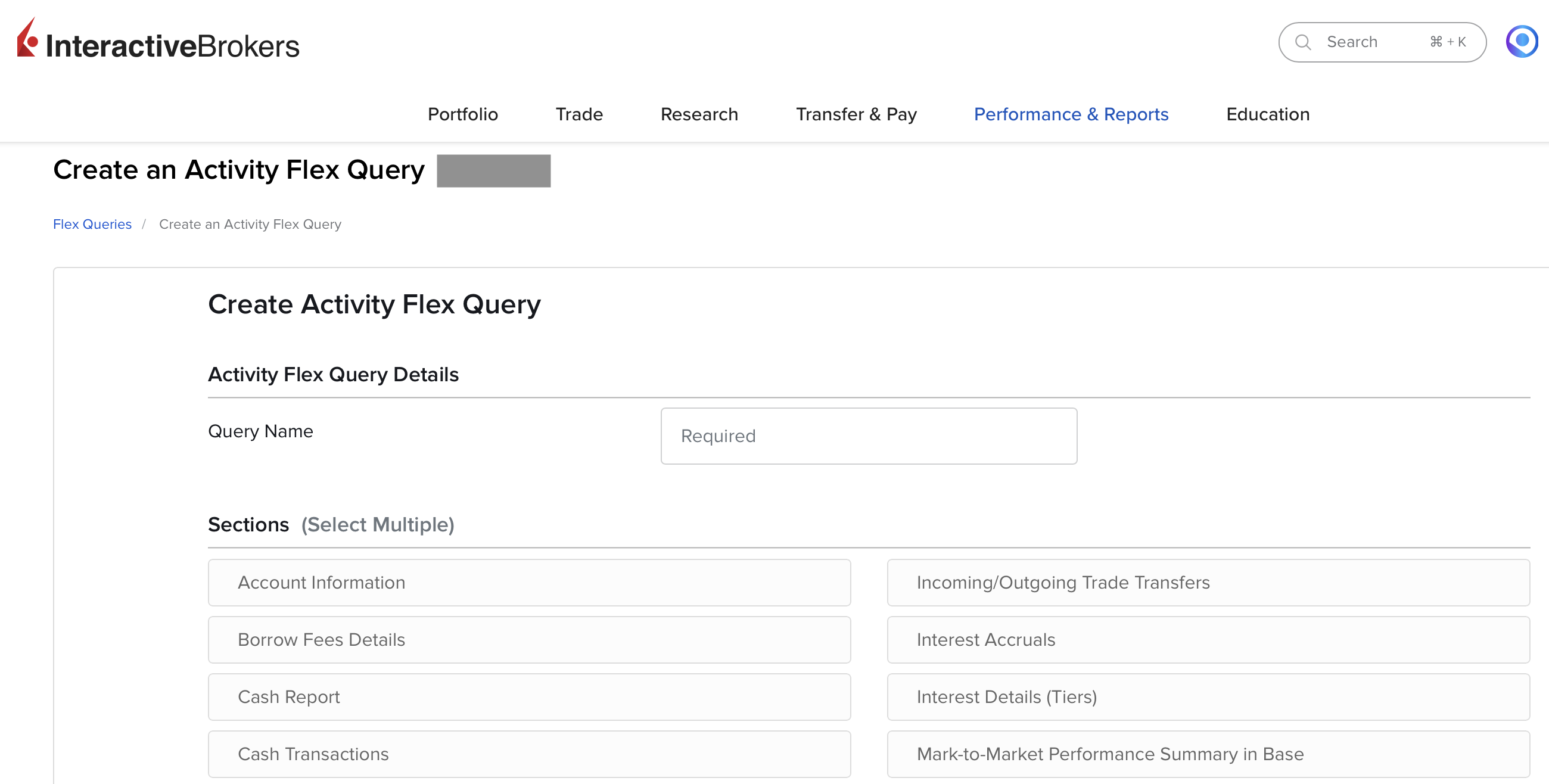
- Click Save. IBKR generates a Query ID — a short numeric code.
- Note down the Query ID. You will paste it into Tally Up shortly.
For further details see the IBKR guide to Activity Flex Queries.
Step 2 — Generate a Flex Web Service Token
Section titled “Step 2 — Generate a Flex Web Service Token”The Flex Token authorises Tally Up to request your Flex reports on your behalf. It has read-only access and cannot trade or move funds.
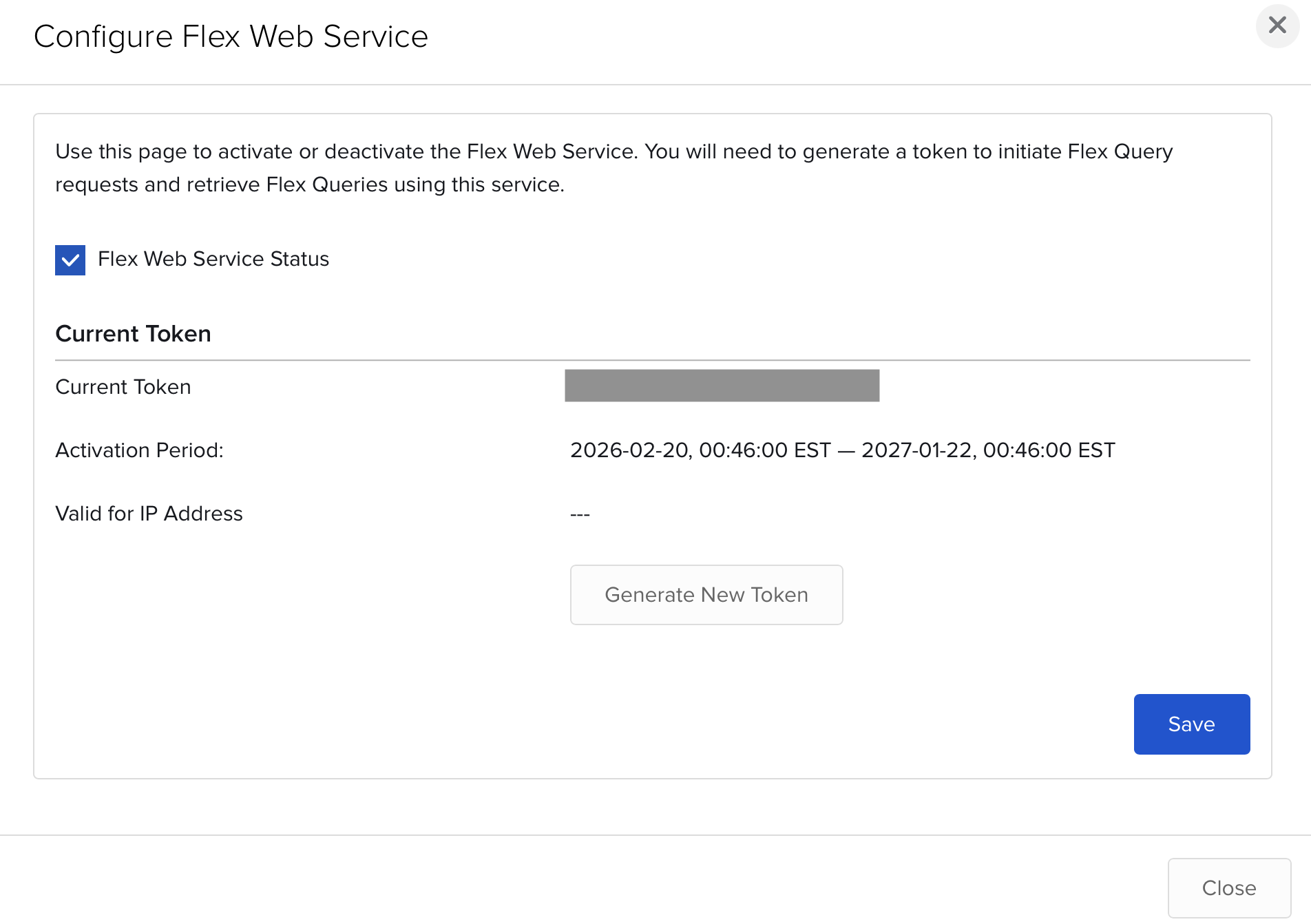
- In Client Portal, go to Settings → Flex Web Service.
- Click Enable Flex Web Service if it is not already on.
- Click Generate Token.
- Copy the token — it is a long alphanumeric string.
For further details see the IBKR guide to the Flex Web Service.
Step 3 — Add the connection in Tally Up
Section titled “Step 3 — Add the connection in Tally Up”- In Tally Up, open Settings → Bank Connections and tap Add Connection.
- Select Interactive Brokers as the provider.
- Paste your Flex Token into the token field.
- Paste your Query ID into the query ID field.
- Tap Test Connection. Tally Up contacts IBKR and confirms the credentials are valid.
- If the test succeeds, tap Save Connection.
Step 4 — Link accounts to assets
Section titled “Step 4 — Link accounts to assets”Once the connection is saved, link each IBKR account to a Tally Up asset:
- Open the asset you want to link (or create a new one).
- In the asset editor, find the Banking section.
- Select your saved Interactive Brokers connection.
- Choose the specific IBKR account to link to this asset (Tally Up fetches the list from IBKR).
- Save the asset.
If you have multiple IBKR accounts — for example, a cash account and an investment account — set up one asset per account, using the same saved connection for each.
What gets imported
Section titled “What gets imported”| Transaction type | Description |
|---|---|
| Trade — buy | Share or instrument purchase |
| Trade — sell | Share or instrument sale |
| Cash deposit | Money arriving in your account |
| Cash withdrawal | Money leaving your account |
| Dividend | Dividend payment received |
| Interest | Interest earned |
| Fee | Commission or account fee |
| Withholding tax | Tax deducted at source |
| FX conversion | Currency exchange — imported as two linked transactions |
Token expiry
Section titled “Token expiry”Flex tokens expire periodically. When a token expires, syncing stops and the connection status shows an error in Settings → Bank Connections.
To renew:
- Log in to IBKR Client Portal and go to Settings → Flex Web Service.
- Generate a new token.
- In Tally Up, open Settings → Bank Connections, tap your Interactive Brokers connection, and paste the new token.
- Tap Test Connection, then Save Connection.
Your Query ID does not change when you regenerate the token.
Troubleshooting
Section titled “Troubleshooting”| Problem | Resolution |
|---|---|
| Invalid token | Generate a new token in IBKR’s Flex Web Service settings |
| Invalid Query ID | Confirm the Query ID in IBKR’s Flex Queries screen — it is the numeric ID shown next to the query |
| Report format not supported | Ensure the query type is Activity Statement and the output format is XML |
| Missing transactions | Edit the Flex Query in IBKR and verify all recommended sections are enabled |
| No accounts listed | The token may not yet have been activated — wait a few minutes after generating and try again |
Historical data
Section titled “Historical data”On first sync, Tally Up imports your full transaction history from IBKR in monthly chunks going back as far as your account holds data. This initial import may take a few moments. Subsequent syncs are incremental, fetching only new activity since the last successful sync.
Using on a second device
Section titled “Using on a second device”The saved connection record syncs to all your devices via iCloud, but the Flex Token is stored in the Keychain on each device separately.
On the second device:
- Open Settings → Bank Connections.
- Tap your Interactive Brokers connection (shown as Credentials required on this device).
- Paste your Flex Token and Query ID, then tap Save Connection.
It is recommended to enable background sync on your main device only. On secondary devices, leave Enable Background Refresh off in Settings → Bank Connections.